
VScode on Linux
Microsoft Visual Studio Code running in Linux Home Directories.
(LINUX ONLY - Not for Windows or Mac)
1. Log into any Linux session: M210-Linux, Babylons, or any Thayer Linux server/Workstation will work as it will save this to your home directory.
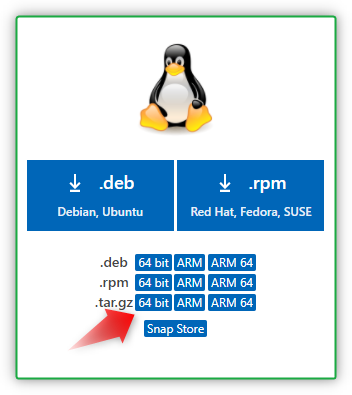
2. Go to https://code.visualstudio.com/download and select tar.gz 64bit
3. Open a terminal and create a new directory in home folder 'VScode'. Then, move the download to your newly created folder:
# mkdir VScode && cp Downloads/code-stable-x64-1639562789.tar.gz VScode
4. Decompress the file to VScode
# tar -zxf VScode/code-stable-x64-1639562789.tar.gz -C VScode
5. Add the executable path to your ~/.bashrc file and source the file.
# echo 'PATH=/thayerfs/home/$USER/VScode/VSCode-linux-x64/bin:$PATH' >> ~/.bashrc && source ~/.bashrc
6. Now, to run VScode, you can type ' code' in the terminal and press enter.
# code
 Because this is in your home directory, you will be able to run this from any Linux session by typing code in the terminal.